


Photo Folder
Photo Folder in BandiView lets you copy or move the photo file you are viewing directly to a preset folder. Use it to collect your favorite shots or sort photos into folders as you review them one by one.
Where is Photo Folder?
Click Copy to at the top right of the window to open the Photo Folder panel on the right. Press Alt + P to open or close it. This shortcut also works when the menu is hidden because the window is too small.
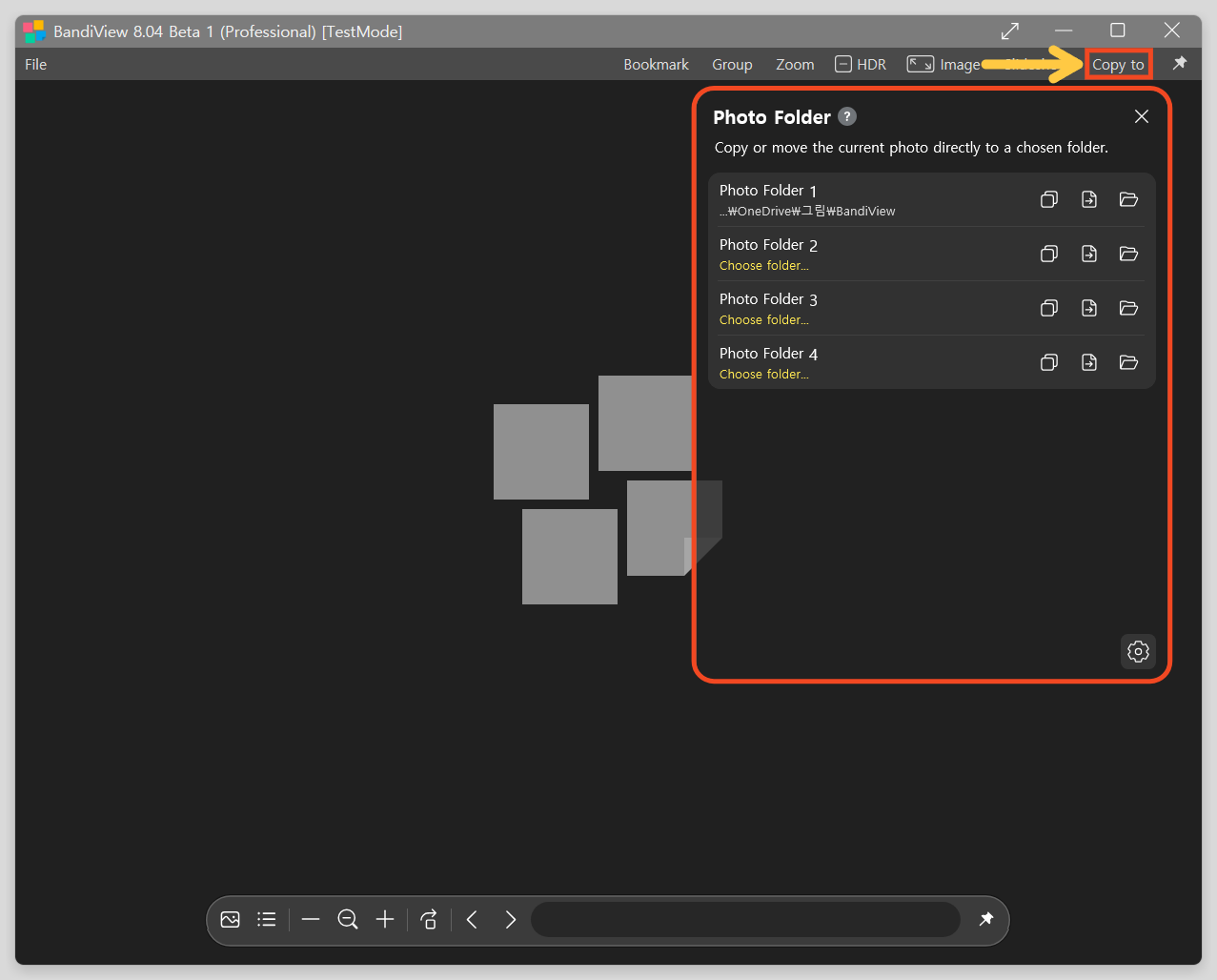
Photo Folder panel controls
Numbers 1–6 in the image below identify the following controls.
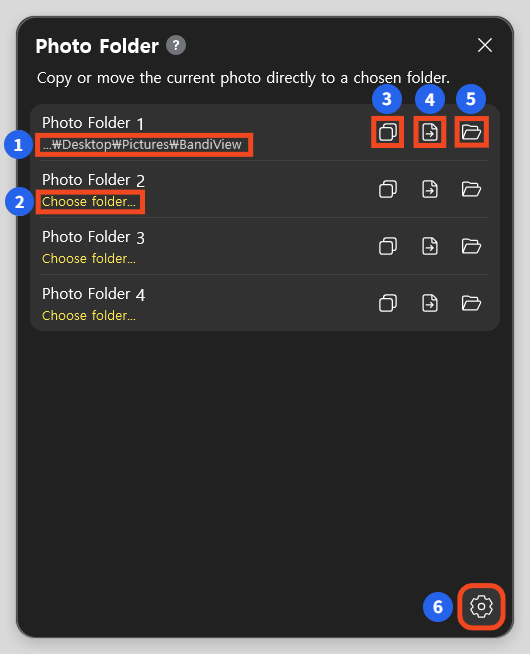
- Destination path: Shows the folder assigned to this photo folder. Long paths are shortened; hover over the path to see it in full.
- Choose folder: Indicates that no destination has been assigned yet. Click to select a folder.
- Copy: Copy the current photo file to the destination folder and keep the original in its current location.
- Move: Move the current photo file to the destination folder. After a successful move, the file is no longer in its original location.
- Open folder: Open the destination folder in File Explorer.
- Settings: Opens the Photo Folder settings, where you can assign or change the destination for each photo folder.
Set up destination folders
You can use photo folders 1 through 4. By default, folder 1 uses the BandiView folder inside your Pictures folder, typically C:\Users\YourName\Pictures\BandiView. The location may differ if you moved Pictures or linked it to OneDrive. Check the path shown in the panel for your actual destination.
- Open the Photo Folder panel.
- For a folder that has not been configured, click Choose folder… and choose a destination.
- To change an existing destination, click the Settings (gear) button at the bottom of the panel. You can also change destinations in Configuration (F5) → Photo Folder.
Click the Settings button marked 6 in the panel above to open the screen below. Use controls 1–3 in this screen to configure the destination for each photo folder.
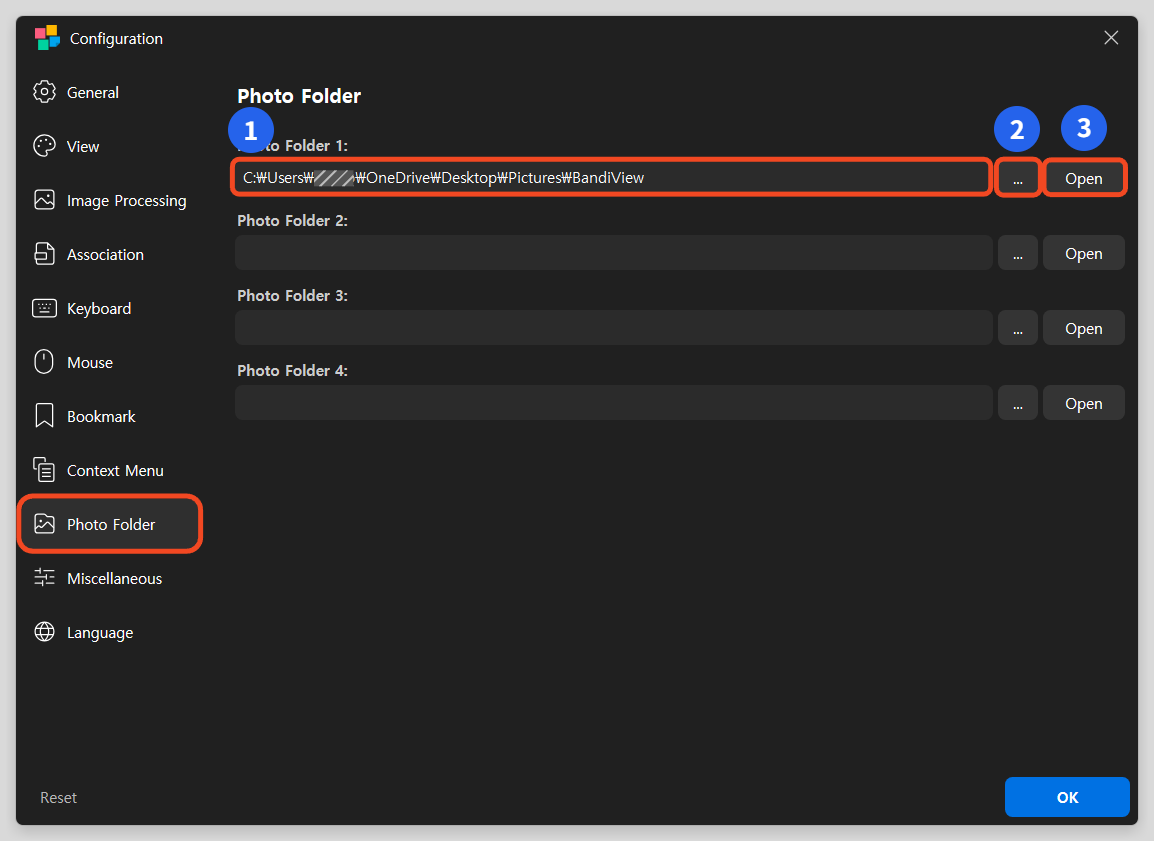
- Path field: View or enter the destination path for this photo folder.
- Browse button (…): Select a destination in the folder selection dialog.
- Open button: Open the selected folder in File Explorer to check its location and contents.
Click OK to save your settings. The paths shown in the screenshots are examples; your actual paths depend on your configuration.
Default keyboard shortcuts
Press Alt + 1–4 to copy the current photo to the corresponding photo folder, or Ctrl + Alt + 1–4 to move it.
| Action | Shortcut |
|---|---|
| Copy to photo folder 1 | Alt + 1 |
| Copy to photo folder 2 | Alt + 2 |
| Copy to photo folder 3 | Alt + 3 |
| Copy to photo folder 4 | Alt + 4 |
| Move to photo folder 1 | Ctrl + Alt + 1 |
| Move to photo folder 2 | Ctrl + Alt + 2 |
| Move to photo folder 3 | Ctrl + Alt + 3 |
| Move to photo folder 4 | Ctrl + Alt + 4 |
| Open or close the Photo Folder panel | Alt + P |
The existing shortcuts are also available: Insert copies to photo folder 1, Ctrl + Insert moves to photo folder 1, and Shift + Insert copies to photo folder 2.
To add or change shortcuts, follow the steps below. If you have customized your shortcuts, check your current settings.
Add keyboard shortcuts
Follow steps 1–5 in the image below to assign a shortcut to an action.
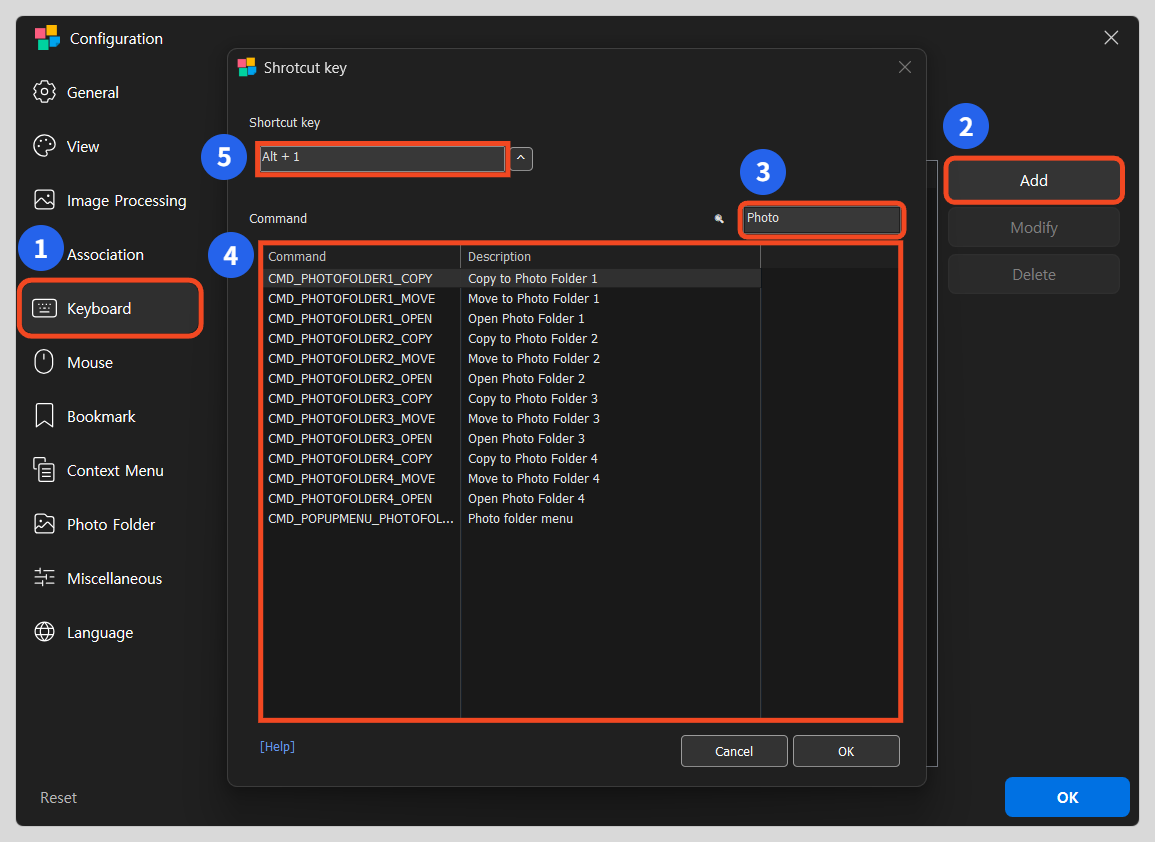
- Keyboard: Press F5 to open Configuration, then select Keyboard on the left.
- Add: Click Add to open the shortcut dialog.
- Search: Enter Photo in the search field to find commands related to Photo Folder.
- Select a command: Read the descriptions and select the action you want. For example, Open Photo Folder 1 is CMD_PHOTOFOLDER1_OPEN.
- Enter a shortcut: Click the Shortcut key field at the top and press the key combination you want to use.
Click OK in the shortcut dialog and make sure the new entry is enabled. Then click OK in Configuration to save your settings.
Alt + 1 in the image is an example of a key combination. You do not need to add default shortcuts that are already assigned. Choose a key combination that does not conflict with another action. Use Modify or Delete to manage entries you have added.
Ways to organize your photos
- Collect your favorite shots: Set folder 1 to a folder for selected photos. Press Alt + 1 on a photo you want to keep to collect a copy while preserving the original.
- Sort by purpose: Assign folders 1–4 to Print, Share, Edit, and Reference. Use each folder’s Copy button or shortcut as you review your photos.
- Organize original files: Use Move to transfer photos from a temporary sorting folder to their final folders. Try a few photos first to check the destination and result.
Frequently asked questions
Does changing a destination move photos already stored there?
No. Changing a folder setting only changes the destination for future copy or move operations. Photos in the previous destination remain there.
Does Photo Folder convert images?
No. Photo Folder copies or moves files; it does not convert their image format.
What if a file with the same name already exists?
If an overwrite dialog appears, review the files and choose how to handle the conflict.
Can I save photos from an archive?
Yes. Photos inside an archive are extracted to the destination folder. Even with the Move command, the original inside the archive is not deleted.
Can I copy RAW and JPG files together?
Use RAW/JPG grouping and its Photo Folder option to process grouped files together. See the RAW/JPG grouping guide below.